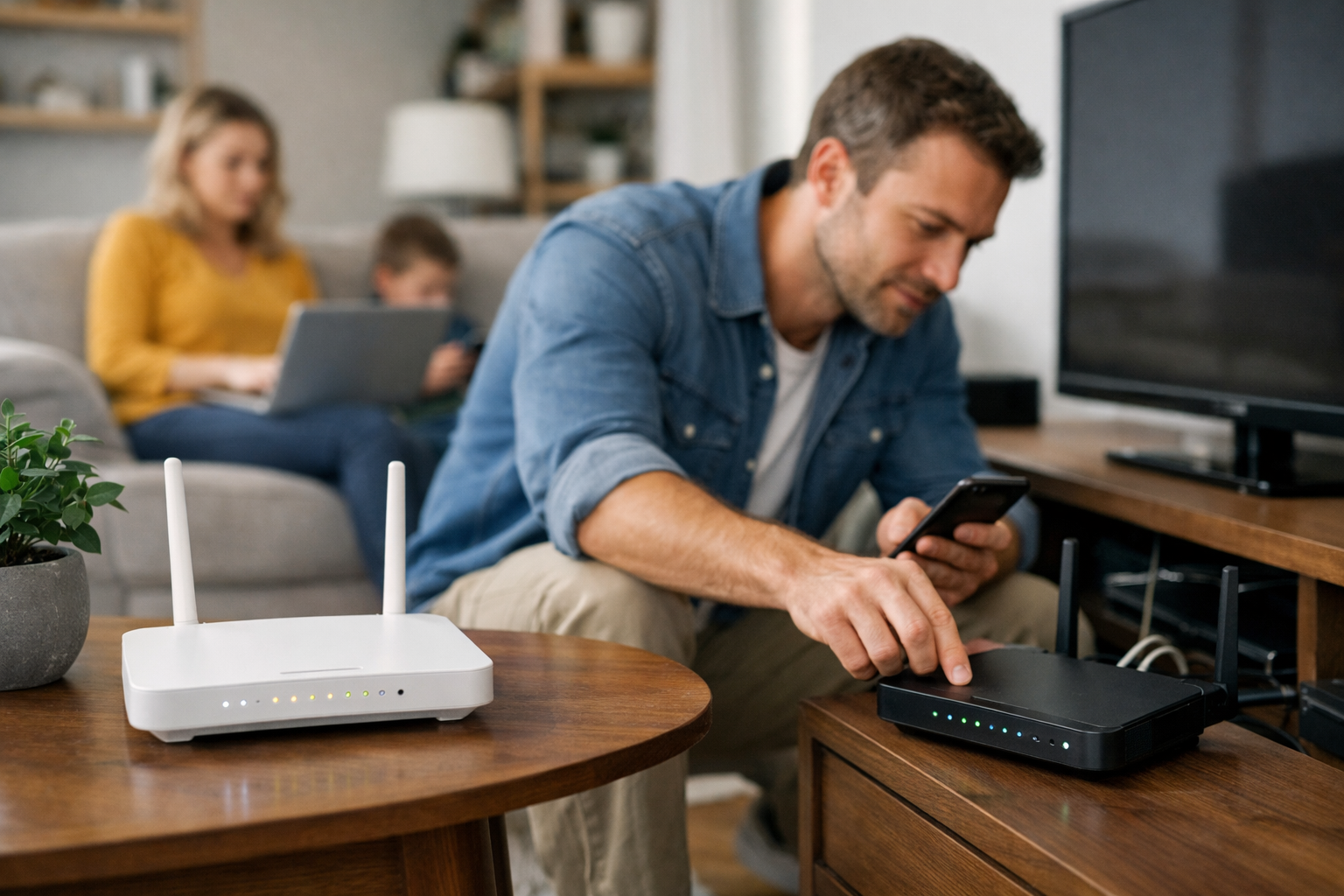
This guide covers how to fix slow Wi-Fi and the practical troubleshooting steps to try before resetting the device or changing network settings. A slow connection can make video calls freeze, streaming buffers pile up, and simple downloads feel frustratingly long. But before buying a new router or changing your internet plan, it helps to identify where the slowdown actually begins.
Your internet service, modem, router, Wi-Fi signal, connected devices, and household activity can all affect what you experience. The most reliable approach to how to fix slow Wi-Fi is to test in a logical order: find out whether the issue affects one device or the whole home, compare wired and wireless performance, then address placement, congestion, equipment, or your ISP as needed.
First, Find Out What Is Actually Slow
Start with a simple question: is the problem happening on one device or on several?
If your laptop is slow but your phone, TV, and another computer work normally in the same room, the issue may be limited to that laptop. Its Wi-Fi hardware, software, operating system, browser, VPN, or physical location could be the cause. Restarting the device, disconnecting and reconnecting to Wi-Fi, and checking for system updates are reasonable first steps.
If several devices are slow at once, particularly throughout the home, the problem is more likely to involve the router, modem, Wi-Fi environment, household bandwidth use, or internet service.
It also helps to define the symptom. A weak signal in one bedroom points toward coverage or interference. Slow performance everywhere may point toward the internet connection, a modem or router issue, or too many competing activities. A connection that slows down only in the evening may be related to household usage or conditions outside your home that your ISP needs to investigate.
- One device is slow: Check that device first.
- One room is slow: Focus on Wi-Fi coverage, router placement, barriers, and interference.
- Every device is slow: Compare Wi-Fi and Ethernet performance, then investigate the modem, router, cables, and ISP connection.
- Slowdowns happen at certain times: Check for scheduled backups, downloads, streaming, camera uploads, or recurring ISP congestion.
How to Fix Slow Wi-Fi With Comparable Speed Tests
A speed test is useful, but a single result is not a complete diagnosis. Test outcomes can vary with the device you use, the test server, active traffic on your network, Wi-Fi signal quality, and conditions between your home and the internet.
For useful comparisons, run tests under similar conditions and write down where, when, and how you tested. If possible, pause large downloads, cloud backups, game updates, and unnecessary streaming before testing.
When you can, test one device at a time, temporarily turn off VPN software for a comparison run (VPN overhead can reduce measured speed even when Wi-Fi is fine), and note whether the issue is download, upload, latency, or stability—not just a single speed number.
Test near the router first
Stand or sit a few feet from the main router or mesh gateway and run a speed test on a recent phone, tablet, or laptop. This result shows what your Wi-Fi can do when signal strength is likely at its best.
Next, run the same test in the room where Wi-Fi feels slow. A large drop between the two locations suggests a local coverage, distance, barrier, or interference issue rather than a problem with your internet plan alone.
Run an Ethernet speed test when possible
For the clearest separation between Wi-Fi performance and your incoming internet connection, connect a computer directly to the router or gateway with a working Ethernet cable. Then run a speed test.
If the wired result is close to what you expect from your service plan but Wi-Fi is much slower, focus on the router, Wi-Fi bands, placement, interference, or client device limitations. If wired speeds are also consistently low, the issue may involve the modem, Ethernet cabling, the router’s wired connection, or the ISP.
Microsoft also recommends trying Ethernet as part of its general process for troubleshooting Wi-Fi connection issues in Windows. Use a computer and cable you trust when possible, since an older device or damaged cable can create a misleading result.
Compare results at different times
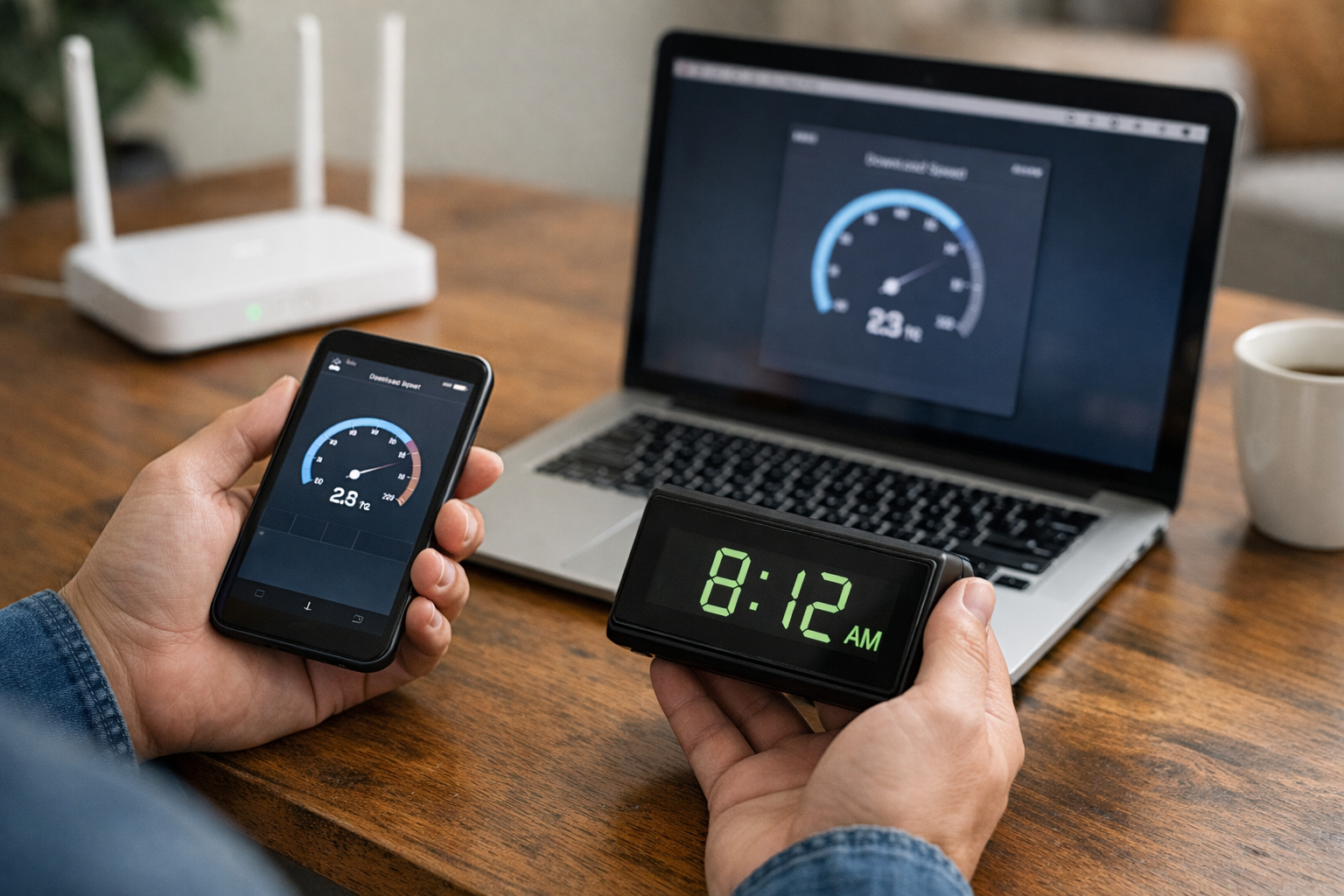
Repeat your tests at more than one time of day. A result at 10 a.m. may not match one during a busy evening when people in your home are streaming, gaming, backing up files, or using video calls.
Compare your wired results with the download and upload speeds in your service plan, while keeping in mind that actual results can vary. If you do not know your plan’s expected speeds, check your ISP account page or bill before assuming the equipment is at fault.
Restart the Modem and Router
A restart does not permanently upgrade your connection, but it can clear temporary connection problems and is a useful diagnostic step.
If you have separate equipment, power-cycle the modem first. Unplug it, wait briefly, reconnect power, and allow it time to fully reconnect to your ISP. Then restart the router. If you use a mesh system, restart the gateway unit first and allow the network to come back before judging performance.
If your ISP provided one combination modem-router gateway, restart that device according to the provider’s instructions.
After the restart, test again over Wi-Fi and, if possible, Ethernet. If performance improves only briefly before becoming slow again, make a note of that pattern. It can be useful information when you contact the ISP or equipment manufacturer.
Improve Router Placement Before Replacing Equipment
Router placement can have a major effect on Wi-Fi performance. Radio signals weaken with distance and can be reduced by walls, floors, cabinetry, plumbing, concrete, brick, metal, and other building materials.
Place the main router or mesh gateway in a central, open, elevated area whenever practical. A shelf or table in an open living area is usually a better starting point than a closed cabinet, basement corner, media console, closet, or floor-level location.
Try to keep it away from large metal objects, appliances, dense wiring, and electronics that may contribute to interference. You may not be able to eliminate every source of interference in an apartment or densely built neighborhood, but moving the router a short distance can still improve a weak area.
Place mesh nodes where they can receive a strong signal
A mesh node cannot create a strong connection from a poor one. Do not place an extra node directly inside a dead zone and expect it to solve the problem. Instead, place it between the main gateway and the weak area, where it can still maintain a solid connection to the gateway or another node.
Test after moving one node at a time. If your home has Ethernet wiring or a practical cable path, a wired Ethernet backhaul between mesh units can reduce the performance limits of a wireless link.
For a detached room, basement office, or distant floor, a wired connection may be more dependable than repeatedly adding wireless extenders or mesh nodes.
Reduce Congestion and Choose the Better Wi-Fi Band
Even a healthy network has a finite amount of bandwidth. Multiple high-bandwidth activities can compete for it, including 4K streaming, large downloads, online gaming, cloud synchronization, video meetings, and security-camera uploads.
Check whether a slow period lines up with a major download, automatic backup, console update, or several simultaneous streams. Many routers and mesh apps show connected devices and may let you pause an unfamiliar device or identify a device using substantial bandwidth. The exact menus vary by model, so use your manufacturer’s support instructions rather than relying on a universal path.
Understand 2.4 GHz vs. 5 GHz
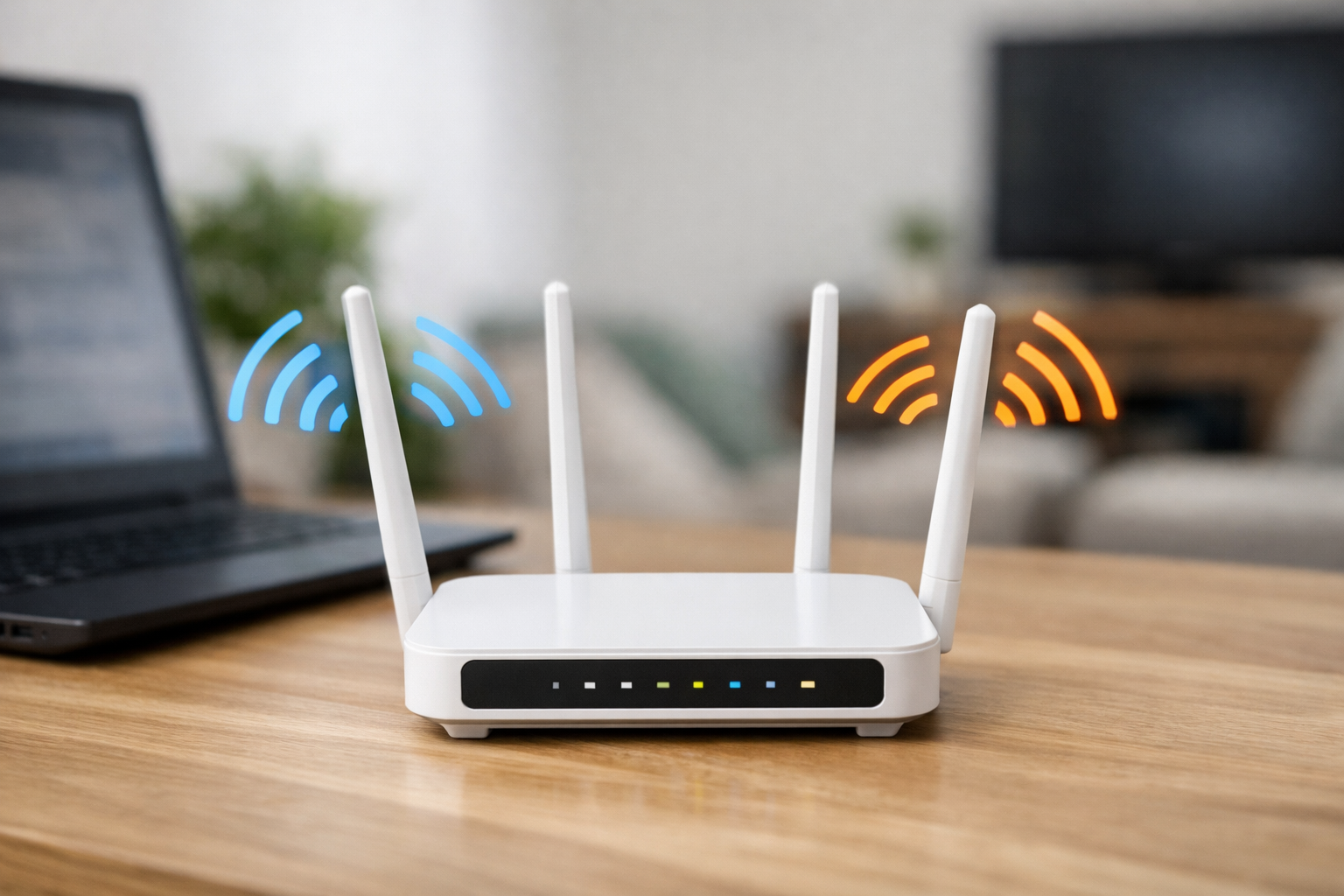
The 2.4 GHz band generally reaches farther and may work better through obstacles, but it can be more crowded and may offer lower speeds. The 5 GHz band generally supports higher speeds at shorter range, though it may weaken more quickly through walls and floors.
For devices close to the router, 5 GHz is often the better choice when available. For a smart-home device at the far edge of the home, 2.4 GHz may be more reliable. Some routers choose a band automatically through band steering, while others show separate network names. Check your router documentation before changing settings.
6 GHz when your router and devices support it
Wi-Fi 6E and Wi-Fi 7 gear can use the 6 GHz band only when both the router (or mesh node) and the client support it. The band may be less crowded in some buildings, but it generally does not reach as far through walls and floors as 2.4 GHz or 5 GHz. Treat 6 GHz as a nearby, high-throughput option—not a whole-home fix by default.
Channels, neighbors, and interference
In apartments and dense neighborhoods, many networks compete for the same spectrum—especially on 2.4 GHz. Your router’s automatic channel selection may help, but it is not always ideal. Bluetooth accessories, some cordless devices, and microwave ovens can add interference in certain situations. Strong signal on your phone’s Wi-Fi icon does not always mean high throughput; congestion and client limits still matter.
Also remember that the device itself matters. An older laptop, phone, streaming stick, or Wi-Fi adapter may not support the same Wi-Fi standards or speeds as a newer router. Replacing the router will not necessarily make every old client reach the router’s advertised maximum.
Check Cables, Firmware, and Equipment Age
Physical connections still matter, even when the visible problem is wireless. Check that the cable between the modem and router is firmly connected and not visibly damaged. If you are testing by Ethernet, try another known-good cable and another router port if the result seems unexpectedly low.
Keep your router, mesh system, modem gateway, and client devices updated. Firmware and software updates can improve reliability, address bugs, and provide security fixes. Update procedures differ by manufacturer and ISP-supplied equipment, so follow the instructions for your specific model.
Older equipment deserves extra scrutiny if it no longer receives updates, lacks current security support, cannot handle your service tier, or struggles whenever several modern devices are active. The Federal Trade Commission recommends keeping router software current and considering replacement for equipment that no longer receives security updates; see its guidance on securing a home Wi-Fi network.
Replacement is most useful when diagnosis points to a real equipment limitation. A newer router or mesh system can improve wireless coverage and capacity, but it cannot exceed the limits of your ISP service or fix a line problem outside the home.
When to Contact Your ISP or Upgrade Your Setup
Contact your ISP when wired speed tests are consistently far below the speeds you are paying for, especially after restarting the modem or gateway and checking local cables. You should also reach out if you see recurring outages, frequent modem disconnects, unexplained service drops, or slowdowns that affect the whole home and persist across multiple devices.
Before calling, gather useful details: your plan speed, dates and times of tests, wired and wireless results, affected devices, whether a restart helped, and any modem status lights or outage notices. That information can help the provider separate a home Wi-Fi problem from a service-line issue.
An upgrade may make sense when your wired connection is healthy but your home has coverage gaps, many active devices, multiple floors, or a router that is outdated and unsupported. Consider a mesh system for broad coverage, wired access points or Ethernet backhaul where cabling is practical, or a newer Wi-Fi adapter for a computer that is the only consistently slow device.
Internet speed, Wi-Fi speed, and common mix-ups
Internet (ISP) speed is what reaches your modem or gateway from your provider. Wi-Fi speed is the wireless link between your router and a device—they are related but not the same problem. A fast internet plan can still feel slow on Wi-Fi if coverage, interference, or an old client adapter is the bottleneck.
DNS affects how quickly names resolve to start a connection; changing DNS may change responsiveness for some tasks but does not by itself raise your broadband capacity. VPNs can reduce throughput because of encryption and routing; compare with VPN off before blaming Wi-Fi or your ISP.
Apartment and condo Wi-Fi realities
Shared walls, many visible SSIDs, and limited router placement (closets, corners, near the entry) are common. The 2.4 GHz band is often the most crowded. ISP-supplied gateways may sit where coax enters, not where you actually use Wi-Fi. You usually should not open building telecom panels without permission. If private coax connects your rooms, MoCA adapters can sometimes provide wired backhaul without new in-wall Ethernet—only after you confirm the coax path is yours and compatible.
Mesh, backhaul, and wired bottlenecks
Adding mesh nodes does not always help: a node placed where the signal is already unusable often performs poorly. Wireless backhaul shares airtime with client devices; each hop can add variability. Prefer placing nodes where they still receive a solid signal from the gateway or upstream node. Wired Ethernet—or MoCA where coax allows—can make mesh and access points more consistent than repeating Wi-Fi alone.
Check wired limits too: WAN and LAN port speeds, switch ports, cable condition, and link negotiation (for example gigabit versus multi-gig) can cap performance even when Wi-Fi looks fine. An old laptop’s Wi-Fi adapter or a single 1 GbE port can be the slowest link in the chain.
Common troubleshooting mistakes
- Rebooting repeatedly without recording wired versus Wi-Fi results.
- Replacing the router before an Ethernet speed test shows whether the ISP path is healthy.
- Expecting full plan speed in every room on Wi-Fi.
- Testing only through a VPN, or only on one old device.
- Adding mesh nodes too far apart or deep inside dead zones.
- Treating DNS changes as a substitute for fixing coverage or congestion.
- Staying on 2.4 GHz when 5 GHz (or 6 GHz nearby) would work better—or using 5/6 GHz too far from the router.
- Ignoring Ethernet bottlenecks and leaving outdated extenders in the network.
- Changing several router settings at once so you cannot tell what helped.
When to upgrade hardware (after diagnosis)
Consider new networking gear only when troubleshooting points to a real limit: unsupported or outdated router firmware, Wi-Fi generation mismatch with your clients, coverage that one router cannot serve, mesh backhaul that stays weak without wiring, or internet service that exceeds your gateway’s Ethernet ports. That is a reason to read routers for fiber and multi-gig speeds—not a cue to shop before testing. For broader protocol context (Wi-Fi versus Thread/Matter, etc.), see how to choose the right smart home connection.
When to call your ISP (quick triggers)
Call or chat with your provider when Ethernet tests are also slow, the modem or ONT shows errors or frequent reconnects, every device drops at once, performance collapsed without home-network changes, or speeds stay well below your plan on wired tests after restarts and cable checks. Outage maps and neighbor reports can point to a line issue outside your Wi-Fi setup.
A Practical Order for How to Fix Slow Wi-Fi
When your connection feels slow, resist the urge to change several settings at once. Test one part of the system, make one change, and test again. That makes it much easier to identify what actually helped.
- Check whether one device, one room, or the entire home is affected.
- Run a wired (Ethernet) speed test when possible to see whether the ISP path is slow.
- Run Wi-Fi tests near the router with one device, VPN off, and heavy downloads paused.
- Repeat Wi-Fi tests in the problem room and on a second client device.
- Check band choice, channel congestion, and interference (especially 2.4 GHz in apartments).
- Improve router or gateway placement before buying new gear.
- Review mesh node placement and backhaul—wire with Ethernet or MoCA if practical.
- Check cables, firmware, port speeds, and client Wi-Fi generation limits.
- Contact the ISP if wired tests stay poor, or if disconnects affect all devices.
- Only then consider hardware upgrades matched to the bottleneck you found.
This process for how to fix slow Wi-Fi helps you avoid buying equipment based on guesswork. Once you know whether the bottleneck is the ISP connection, Wi-Fi coverage, device capability, or household demand, you can choose a fix that matches the actual problem.
Useful references: Troubleshoot slow internet on Google Nest Wifi or Google Wifi · Test internet speed and improve your Nest or Google Wifi internet connection
Related Home Tech Signal guides: Best MoCA Adapters for Faster Home Networking, Best Routers for Fiber Internet and Multi-Gig Speeds, How to Choose the Right Smart Home Connection, How to Set Up a VPN on Your Home Router, Best UPS for a Router and Modem