This guide covers how to set up a VPN on your home router and the practical troubleshooting steps to try before resetting the device or changing network settings. A VPN app is straightforward on a phone or laptop, but many home devices cannot run one. Smart TVs, game consoles, streaming boxes, and some smart-home products usually rely on the network connection they are given. Setting up a VPN connection on a compatible router can let those devices use a VPN tunnel without configuring each one separately.
Before you begin, make sure you are solving the right problem. Most people searching for how to set up a VPN on your home router want the router to connect outward to a commercial VPN provider. That is VPN client mode. VPN server mode does the reverse: it lets you connect back into your home network while away.
The menus, supported protocols, and device-routing options vary considerably by router model and firmware. Treat the steps below as a practical workflow, then follow the support instructions for your exact router.
What It Means to Set Up a VPN on a Router
VPN client mode routes home devices through a VPN provider
In VPN client mode, your router establishes an encrypted connection to an outside VPN service. Devices assigned to that connection send their internet traffic through the VPN tunnel rather than directly through the internet service provider connection.
This can be useful when you want VPN coverage for a device that has no VPN app, such as a smart TV or game console. It can also reduce the number of individual devices you need to configure. The tradeoff is that router hardware has to encrypt and process the VPN traffic, which can affect connection performance.
Some routers apply the VPN connection to the entire network. Others offer selective routing, sometimes called policy routing or VPN Fusion, so you can assign only certain devices to the VPN. That flexibility is valuable because a VPN is not necessarily the right choice for every device or service in the house.
VPN server mode provides remote access to home
In VPN server mode, the router accepts an incoming connection from a phone, laptop, or other remote device. Once connected, that remote device can access resources on your home network, subject to the router’s settings. This is useful for reaching local network devices or using your home internet connection while traveling.
It is not the same as sending your home TV, console, or other devices through a commercial VPN provider. A router may support one mode, both modes, or neither, and its protocol support can differ between client and server functions.
Check Compatibility Before You Change Anything
Do not assume every router supports a VPN client. Check the support page for the exact model, hardware revision, firmware version, and region. A router’s product family name alone is not enough. Features can differ between revisions, and newer firmware can add, change, or remove options.
Look in the router documentation or web interface for terms such as:
- VPN Client
- VPN Server
- VPN Fusion or VPN Director
- OpenVPN Client
- WireGuard Client
- Policy Routing or Device Routing
ASUS, for example, distinguishes VPN client, VPN server, and selective-routing features in its router VPN overview. Your router may use different names or organize the settings elsewhere.
Also confirm that your VPN provider supports router installations. Ask or check its support documentation for downloadable configuration profiles, supported protocols, required credentials, DNS guidance, and the number of simultaneous connections included with your plan. A VPN app login does not always work directly in a router interface.
Finally, update router firmware before configuration when practical. Current firmware can address stability and security issues, and it may be required for newer VPN features. Save a backup of your current router settings first if the router offers that option.
Gather What You Need for a VPN Router Setup
Collect the required information before opening the router’s VPN page. The exact list depends on the provider and protocol, but a typical VPN client setup needs the following:
- Your router administrator address, username, and password.
- Your VPN provider account or router-specific credentials.
- A preferred VPN server location or server hostname.
- An OpenVPN
.ovpnconfiguration file, if you are using OpenVPN. - A WireGuard configuration file or the keys, endpoint, and address details required by your router, if you are using WireGuard.
- Any provider instructions for DNS servers, certificates, or special connection settings.
Do not reuse the router administrator password as a VPN password. If your VPN provider creates separate manual-setup credentials, use those exactly as instructed.
Download configuration files directly from the provider’s authenticated site, not from a forum post, file-sharing service, or an email attachment you did not expect. Configuration files can contain server addresses and connection settings that determine where your traffic goes.
How to Set Up a VPN on Your Home Router in Client Mode
The labels vary, but the basic setup sequence is similar across many consumer routers.
- Confirm ordinary internet access first. Connect a computer or phone to the router and verify that it can browse normally before enabling a VPN. This gives you a clean baseline if troubleshooting is needed.
- Sign in to the router’s web interface. Use the local management address shown in the router documentation or app. For initial configuration, a wired Ethernet connection can help avoid losing access if wireless settings or routing change.
- Find the VPN client section. Look under Advanced, Network, WAN, Security, or VPN settings. Do not select VPN Server unless your goal is remote access into the home.
- Create a new VPN profile. Choose the protocol that matches the file or instructions from your provider, usually OpenVPN or WireGuard.
- Import the profile or enter the details. For OpenVPN, this commonly means uploading a
.ovpnfile and entering a username and password if requested. For WireGuard, it may mean importing a configuration file or supplying a public key, private key, endpoint, and tunnel address. - Choose routing behavior. Decide whether all eligible devices should use the VPN or only selected devices. If the router has device assignment, start with one test device rather than moving the entire network immediately.
- Activate the profile. Wait for the router to report a connected status. Save the profile name and settings so you can identify it later.
- Test from an assigned device. Confirm that the selected device has internet access and that its public IP reflects the VPN connection. Then check devices that were intentionally excluded to make sure they still use the normal connection.
ASUS provides an example of this workflow, including importing an OpenVPN profile and activating the connection, in its VPN client web-interface setup guide. Use it as an example of the general process, not as a menu-by-menu guide for every brand.
OpenVPN vs. WireGuard on a Router
OpenVPN and WireGuard are common choices for a router VPN client, but your decision is constrained by what both your router and VPN provider support.
OpenVPN
OpenVPN router setup commonly relies on a provider-supplied .ovpn file. That file can include server details and other required settings. Depending on the provider, you may also need a separate username, password, certificate, or key.
OpenVPN is widely supported on consumer networking equipment, which can make it the practical option on older compatible routers. However, use the profile created for router or manual configuration rather than assuming a desktop-app profile will import correctly.
WireGuard
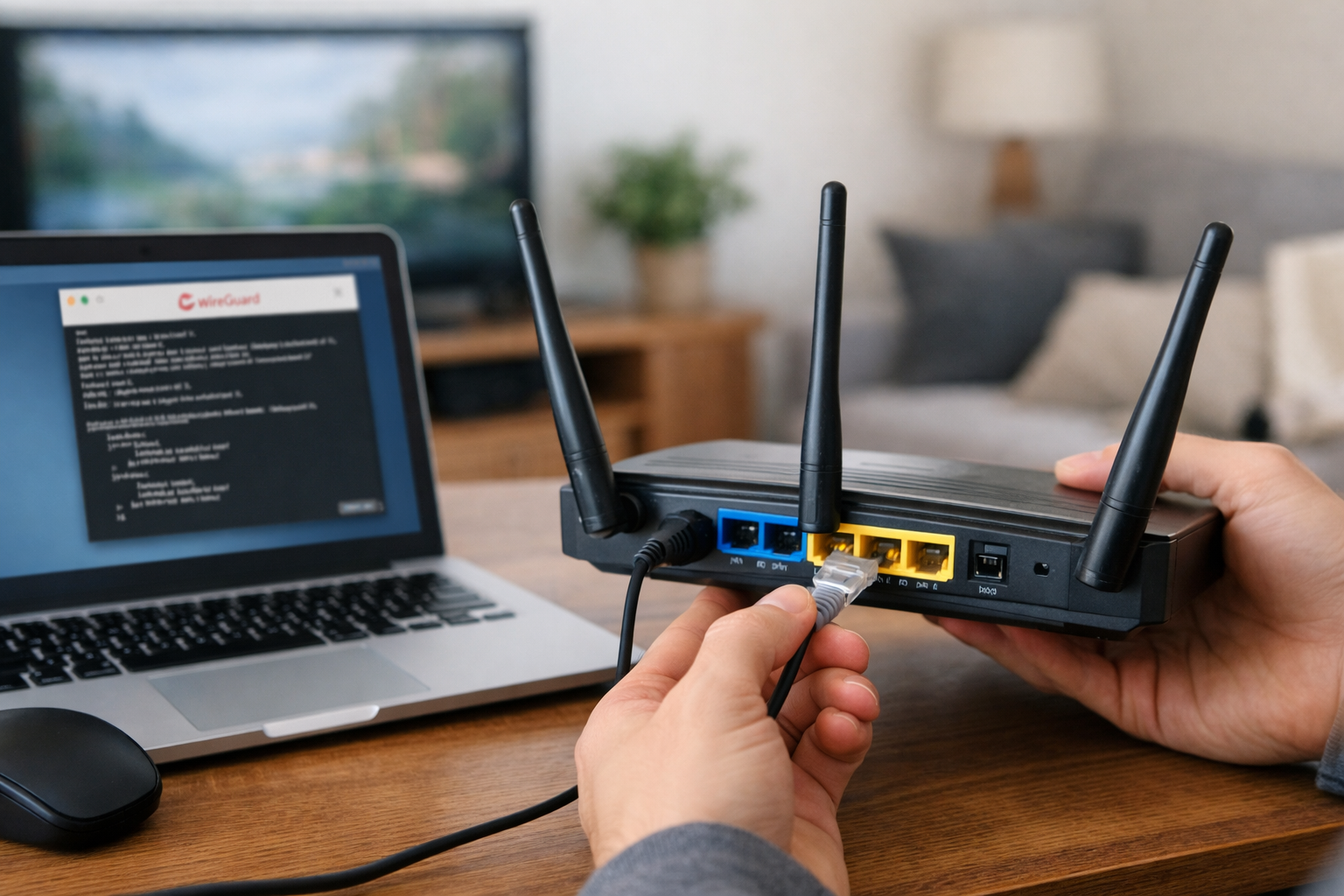
WireGuard uses public and private keys for its tunnel configuration and uses UDP. Its configuration is commonly delivered in a file, though some router interfaces ask you to enter details manually. The official WireGuard site describes its key-based approach and modern protocol design.
Import support is not identical across routers. A router may accept a full provider configuration file, require manual entry, or reject fields that its firmware does not recognize. If an import fails, consult your router manufacturer and VPN provider before editing a file. Do not remove or alter settings unless the documentation for your exact router tells you what is unsupported.
Choose the protocol your provider supports and your router handles reliably. Avoid selecting a legacy protocol simply because it appears in a menu. Protocol availability alone does not make it an appropriate choice for a new setup.
Use Selective Routing for TVs, Consoles, and Smart-Home Devices
A full-network VPN can be convenient, but it can also create avoidable problems. Streaming services, online games, banking sites, local printer discovery, smart speakers, and other services may behave differently when traffic is routed through a VPN. A VPN can also change DNS behavior and add processing overhead.
If your router supports device-level routing, consider a limited first deployment. For example, assign only a smart TV or game console to the VPN profile while leaving work computers, phones, security cameras, and smart-home hubs on the normal connection. This approach makes it easier to identify which change caused a problem.
Use stable device assignments where available. A router may identify a device by its MAC address, IP reservation, hostname, or a combination of these. If the device’s identity changes, it may stop following the intended routing rule.
Not every device benefits from a VPN route. Keep devices on the normal connection when they need reliable local discovery, low-latency access, or compatibility with a service that does not accept VPN-originated connections.
How to Test a Router VPN Connection
After you complete a VPN router setup, test more than the router status indicator. A “connected” label only confirms that the router believes the tunnel is established.
- Check normal browsing: From an assigned device, open several ordinary websites and confirm that pages load normally.
- Check the public IP: Use an IP-checking service from a device assigned to the VPN, then compare the reported location or address with your normal connection. Do the same from an excluded device if you use selective routing.
- Check DNS behavior: Confirm that websites resolve and that any DNS configuration required by your provider is working as expected.
- Check local access: Try reaching a printer, local storage device, or other service you normally use. If local access fails, review the router’s LAN-access and routing settings.
- Restart once: Reboot the router or briefly disconnect the VPN after initial testing. Verify that the tunnel reconnects as expected and that device-routing rules remain in place.
Test with the actual device you intend to use. A laptop may work while a TV or console has different DNS, app, or service requirements.
Common Router VPN Problems and Practical Fixes
The profile will not connect
First, confirm that the router itself has regular internet access. Then recheck the selected protocol, server location, imported file, and credentials. Make sure the profile type matches the file type: an OpenVPN profile cannot be used as a WireGuard profile.
Update router firmware if a current version is available for your exact model. If the connection previously worked, download a fresh configuration file from your provider in case it has changed server details or certificates.
Internet stops working after activation

Disconnect the VPN profile to confirm that the base internet connection returns. If it does, review whether the router is routing all traffic through the tunnel, whether provider DNS instructions were followed, and whether the profile is intended for router use.
A subnet conflict can also cause trouble. For example, if the VPN connection uses the same private IP range as your home LAN or a remote network, routing may become ambiguous. Check your router documentation and provider instructions for a supported way to change the conflicting network range.
The VPN is slow or unstable
Router VPN performance depends on the router’s processing capability, the selected protocol, the VPN server, your internet plan, Wi-Fi conditions, and the destination service. Test with a nearby provider server and with one assigned device before routing the entire home.
Some routers may not automatically reconnect after a VPN server becomes unavailable. If that matters for your household, test reconnection behavior before depending on the setup for a particular device or routine.
Setting Up a VPN Server for Remote Home Access
If your real goal is to reach your home network while away, use the router’s VPN server feature rather than a commercial VPN client profile. The router creates remote-client settings, and you install or import those settings on the phone or computer that will connect from outside the home.
This setup often requires a publicly reachable WAN address. A private WAN address, carrier-grade NAT, or an internet provider gateway sitting in front of your own router can prevent direct inbound connections. You may need to place the gateway in an appropriate mode, configure the upstream device, or ask the ISP whether a public address is available.
Review your router’s remote-access documentation carefully before opening ports or enabling a server. Use strong router administration credentials, keep firmware current, and disable remote services you do not need. If you are unsure whether your ISP connection is publicly reachable, verify that point before spending time configuring remote access.
Final Checklist Before You Rely on a Router VPN
- Your exact router model and firmware support the VPN client or server mode you need.
- Your VPN provider permits manual router connections and supplies compatible files or credentials.
- You selected OpenVPN or WireGuard based on actual router and provider support.
- You tested at least one VPN-assigned device and one device that remains on the normal connection.
- You confirmed local devices and important services still work as expected.
- You know whether the router reconnects after a tunnel interruption.
- For remote-access server use, you verified public-IP and upstream-router requirements.
Learning how to set up a VPN on your home router is less about finding one universal menu path and more about matching the router, provider, protocol, and devices to your goal. Start with a single device, validate the connection, and expand the routing rules only after the setup behaves the way you need.
Useful references: Unlock the Power of the VPN with ASUS Router: Secure, Private, and Seamless Connectivity · [VPN] How to Set Up VPN Client in ASUS Router (Web GUI)